How to Generate Online Electricity Bill: Step-by-Step
Learn how to generate your online electricity bill quickly with a clear, step-by-step process, security tips, and budgeting insights from Genset Cost.


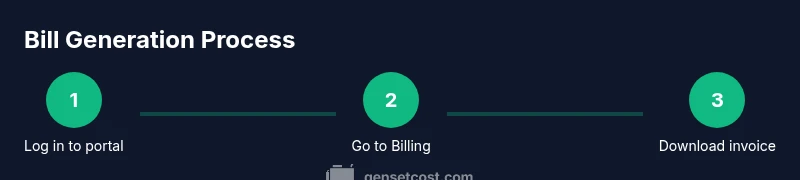
You can generate your online electricity bill by logging into your utility provider’s portal, selecting the billing or invoice section, and downloading or emailing the bill. Most providers let you view current and past bills, choose date ranges, and save as PDF. Ensure your account is linked and your address is correct to get an accurate bill.
What online electricity billing means for homeowners
Online electricity billing gives you immediate access to your usage data, charges, taxes, and credits without waiting for a mailed statement. For homeowners and property managers, the digital bill streamlines budgeting, simplifies auditing, and reduces clutter. The core idea is to generate, view, and download invoices directly from your utility portal, ensuring you have an exact record of energy consumption and costs for any given period. Alongside the bill, many portals provide a usage graph, rate plan details, and past billing history to help you compare seasons and projects. When you know how to generate online electricity bill data, you can verify meter readings, identify anomalies, and plan smarter energy budgets across multiple properties.
In practice, this process is supported by most major providers through secure sign-in, a dedicated Billing or Invoices tab, and a consistent file format (PDF, HTML, or CSV). For many households, online billing is the preferred method because it reduces paper waste and makes it easy to archive bills for tax purposes or cost analyses. As you follow this guide, you’ll see how each step aligns with common billing cycles and how to leverage digital records for better energy management.
Accessing your provider's online portal securely
Security is the foundation of online billing. Start by confirming you are on the official provider site (watch for the URL and certificate). Use a strong, unique password and enable two-factor authentication if available. Before you begin, gather your account number, the primary contact email, and any security answers your provider uses. If you’re accessing from a shared device, use a private browsing window and sign out when finished.
Next, navigate to the provider’s login page and complete the authentication flow. If you’ve forgotten your credentials, use the “Forgot password” option and follow the official recovery steps, avoiding any unsolicited emails claiming to supply access. Once signed in, look for a clearly labeled Billing, Invoices, or Statements tab; consistency across providers makes this step predictable, even if the exact labels vary slightly. As you practice this process, you’ll gain efficiency and reduce the risk of credential exposure.
Finding the billing section and selecting the period
Within the dashboard, locate the Billing, Invoices, or Statements area. Some portals place it under “My Account” or “Usage & Billing.” Open the current billing period or select a date range to generate a specific bill. If you want to compare two months, set the start and end dates precisely; many systems offer presets like “Last 30 days” or “This month.” Use filter options to view charges by category (energy, demand charges, taxes) and verify that the period aligns with your billing cycle.
Take a moment to confirm the service address, meter number, and account name shown on the bill. Small mismatches can happen if you’ve recently moved or changed a plan. A quick check ensures the output you generate reflects the correct property and timeframe.
Generating, viewing, and saving your bill
After selecting the period, click on the button labeled Generate, View, or Download Bill. The portal will render a detailed invoice that includes the usage in kWh, unit rates, taxes, and any credits or penalties. For archiving and sharing, download the bill as a PDF; some portals also offer CSV or HTML formats for data analysis. If you need to share the bill with a property manager or accountant, email or generate a shareable link, if provided by the portal.
Pro tip: keep a local copy in a dedicated energy folder and name files with the date and property for easy retrieval. If the bill is unusually high, use the same screen to compare with prior periods—this helps catch rate changes or meter issues early.
Download formats and sharing options
PDF is the most universally accepted for records and audits due to its fixed layout. CSV or Excel formats are excellent when you want to import usage and charge items into budgeting spreadsheets. HTML versions are handy for quick on-screen viewing without downloading. Some providers also offer a direct email option or a secure link that you can share with your team or tenants.
When saving, ensure the file is legible and contains essential fields: account number, billing date, due date, energy usage, rate, taxes, and any credits. If you manage multiple properties, consider a consistent naming convention like "PropertyName_Bill_YYYYMM.pdf" to keep things organized. Always verify that the downloaded copy matches the on-screen view before filing.
Verifying bill accuracy and common errors
The most important step is validation. Cross-check meter readings with your own usage data, confirm the rate plan in effect during the billing period, and review any taxes or credits applied. Look for common errors like incorrect meter numbers, duplicate charges, or shifted billing dates. If something doesn’t add up, document the discrepancy with the date, time, and screenshots, and contact the utility’s billing support with your reference number. Maintaining a habit of quick checks will save you time and prevent late or disputed charges.
For property managers, batch-check several accounts using the same criteria—this can reveal systemic issues or rate changes affecting multiple tenants. When you catch irregularities early, you can request a correction before it significantly affects cash flow.
Security, privacy, and best practices for online billing
Protecting personal data is essential as you generate and store bills online. Use a device you control, enable two-factor authentication, and avoid saving credentials in browsers. If you use shared devices, always log out and clear the session. Regularly review account activity for unfamiliar sign-ins and update passwords every 60-90 days. Consider keeping a digital archive of bills in encrypted storage and back up important files to a separate drive or cloud service with strong access controls. These practices reduce the risk of data theft and ensure your billing information remains private.
Getting help when online billing is unavailable or unclear
If the portal is down or you can’t locate the billing section, start with the provider’s help center or status page. Use the site’s search function with terms like “billing history,” “invoices,” or the current billing cycle. If you still can’t access your bill, contact customer support and have your account number, last payment date, and a government-issued ID ready for identity verification. Some utilities also offer chat support or scheduled call-back options for urgent issues. Document every interaction for future reference.
Tools & Materials
- Device with internet access (laptop/tablet/smartphone)(Ensure a supported browser (Chrome, Edge, Firefox) and up-to-date OS.)
- Active online account with electricity provider(Have your username, customer number, or account ID handy.)
- Printer or PDF viewer (optional)(Useful for printing or archiving offline.)
- Secure network(Avoid public Wi-Fi; prefer your home/office network.)
- Two-factor authentication setup(Enable 2FA if available for extra security.)
Steps
Estimated time: 15-25 minutes
- 1
Prepare your account access
Confirm you have an active account with your electricity provider and valid login credentials. If you are new, complete the registration and set up identity verification. Gather your account number and primary login details to streamline the process.
Tip: Have your customer/account number handy before you start. - 2
Open the provider portal and login
Navigate to the official portal and sign in using your credentials. If you encounter issues, use the official password recovery options and avoid third-party phishing links. Enable two-factor authentication if available for added security.
Tip: Use a private or secured network to reduce risk. - 3
Find the Billing or Invoices section
Look for a menu item labeled Billing, Invoices, Statements, or Billing History. If you cannot locate it, use the site’s search function or consult the help center. This step is crucial because it directs you to the file you’ll generate.
Tip: If labels vary, try synonyms like 'Usage' or 'Payments'. - 4
Select the period you want to bill
Choose the current billing cycle or a date range for past months. Some portals offer presets like 'Last 30 days' or 'This month.' Verifying the period ensures the correct charges are included.
Tip: Double-check the start and end dates before generating. - 5
Generate, view, and save the bill
Click Generate or View to load the invoice. Save as PDF for records or export as CSV/Excel for data analysis. If sharing, use a secure link or email option if provided.
Tip: Review on-screen data against your own tracking before saving. - 6
Verify bill details for accuracy
Cross-check kWh usage, rate plan, taxes, and credits. Look for discrepancies such as meter numbers or duplicate charges. If something looks wrong, document with screenshots and contact support.
Tip: Compare with prior bills to spot anomalies early. - 7
Securely store and share the bill
Store the downloaded bill in a dedicated energy folder and back it up securely. Share with stakeholders using official channels, ensuring recipient access is controlled.
Tip: Use consistent naming like Property_YYYYMM_Bill.pdf. - 8
Set up future access and alerts (optional)
Enable bill alerts and consider automatic downloads if your provider supports them. This reduces manual steps in the future and keeps you on track for due dates.
Tip: Set reminders a few days before due date. - 9
Troubleshoot access issues
If you cannot access online bills, reset your password, clear the browser cache, or try another device. Contact customer support with your account number if problems persist.
Tip: Have your identity verification ready to speed up assistance.
People Also Ask
What is an online electricity bill and how is it different from a mailed bill?
An online electricity bill is a digital invoice accessed through your utility portal, showing usage, charges, and taxes. It eliminates paper statements and provides instant access to past bills. A mailed bill is a physical copy delivered by post and may take longer to receive and archive.
An online bill is a digital invoice from your utility portal, with instant access and easy archiving; a mailed bill is a physical copy delivered by post.
Do I need to register for online billing separately?
Most providers require you to log in to an existing account or register a new one for online billing. You may need to verify your identity and link your service address to your account.
You usually need to log in to or create an account with your provider to access online billing.
How can I download or share my online bill?
In the billing section, choose the option to view or download the bill, then select PDF, CSV, or HTML. Use the provider’s share or email function if you need to send it to others securely.
Open the bill, download as PDF or CSV, and share through official channels.
What if the amount on my online bill is wrong?
Document the discrepancy with details and screenshots, then contact the provider’s billing support. Request a review or correction and keep a record of the interaction.
If the amount is wrong, gather evidence and contact customer support for a review.
Is there a risk of data theft when using online billing?
There’s some risk if you don’t use secure networks or strong passwords. Mitigate by using 2FA, updating passwords regularly, and avoiding public Wi-Fi for sensitive tasks.
Yes, stay safe by using secure networks and two-factor authentication.
Watch Video
Key Takeaways
- Prepare your account details before starting.
- Use PDFs for records and CSV for budgeting.
- Enable alerts to simplify future bills.
- Double-check usage and rates for accuracy.
- Store bills securely for taxes and audits.